Sweep The Moon Controls Guide
PC hotkeys and mobile prompts for sweeping, shops, Upgrade Computer, and Build Mode on Place 109576450376407.
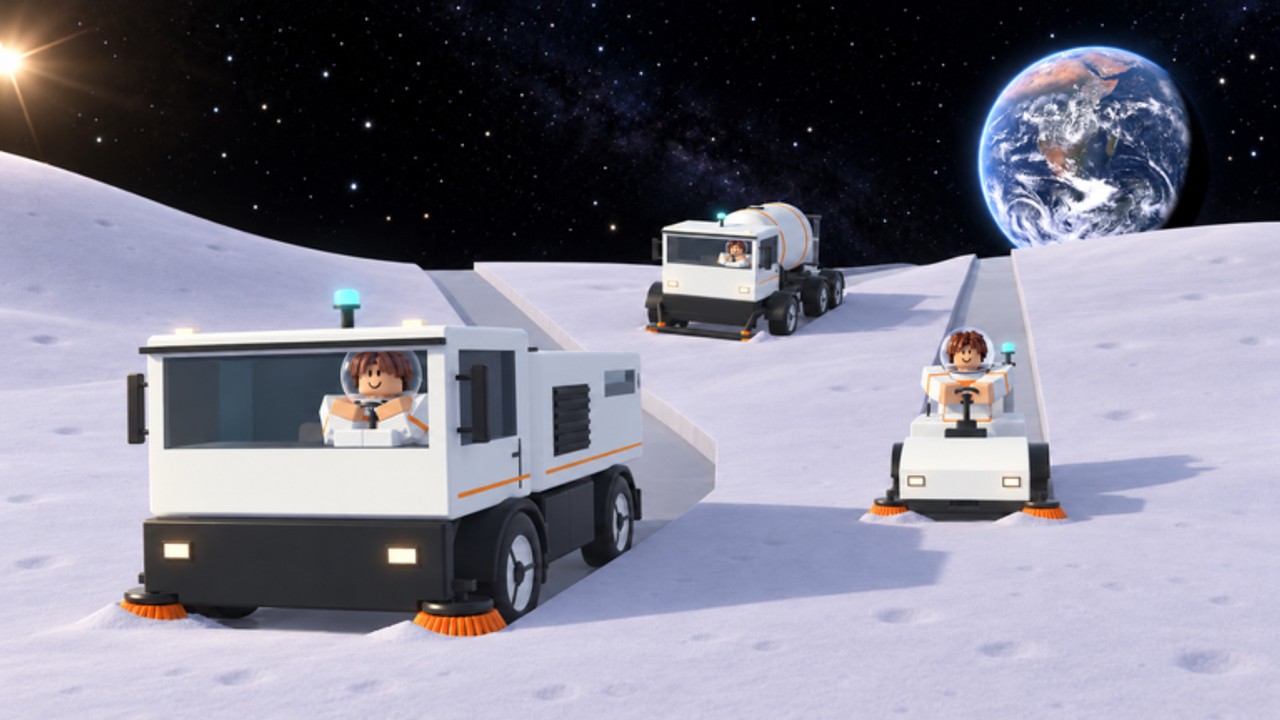
Sweep The Moon feels simple until a menu eats your cursor or Build Mode leaves you stuck. This controls guide covers the inputs DomBlox Games expects on Roblox Place 109576450376407: how to sweep, empty the canister, open the Upgrade Computer, unlock the mouse, open the Robux shop, enter Build Mode, and place belts without rage-quitting. Pair it with Getting Started, the brushes Tool Shop chain, and Robots & Automation once docks enter the picture.
This is DomBlox Sweep The Moon—not Clean the Moon and not Steam Moon Sweepers. Hotkey labels can shift after patches; if a prompt on screen disagrees with this page, trust the live HUD.
Core cleaning loop inputs
| Action | Typical PC input | Notes |
|---|---|---|
| Sweep dust | Hold left mouse button | Prompt reads Hold to sweep; brush lives in hotbar slot 1 |
| Move | WASD / stick | Walk speed upgrades and Strider Class raise m/s |
| Look | Mouse / right stick | Press V when menus need a free cursor |
| Interact / Open | E (common) | Upgrade Computer, deposit prompts, many world prompts |
| Jump | Space | Standard Roblox |
Start every session by confirming the brush is in slot 1. Wider Tool Shop brushes (Scrubber → Dustpan → Broom → Large → T-Bar) still use the same hold-to-sweep rule. Dust fills the canister; when the HUD shows FULL! and a pink or red waypoint, stop sweeping and walk to the blue DEPOSIT pad inside the base. Depositing is an interact prompt on the pad—stand on it until cash text appears (for example Deposit: 6.0 kg +$6 at $1.00/kg).
Finish tiles to 100% CLEAN! for cash plus 3–4 Shards. Partial tiles grant zero Shards, so controls that help you stay on one outlined tile matter more than flashy movement cheats.
Menus: Upgrade Computer, Tool Shop, Robux shop
Upgrade Computer (UPGRADES kiosk) sits in the base hub. Walk up, use the Open / E prompt, then click branch cards (Canister, Head width, Head power, Walk speed, Payout, Tile bonus). You can keep the brush equipped. Full branch math lives on the Upgrades Guide.
Tool Shop is a separate pegboard wall in the TOOL SHOP room—not the Upgrade Computer. Interact with the rack to buy the brush chain. Locked brushes tell you which prior brush to own first. Details and prices: Brushes Guide.
Robux / product shop is often toggled with P on PC (HUD may label it SHOP). This is where Infinite Canister, Fast Legs, gamepasses, and Shard packs appear—not where cash Tool Shop brushes are sold. Never confuse P shop with the free Upgrade Computer.
Unlock mouse — V. First-person camera locks the cursor. Inside Tool Shop, Upgrade Computer, Classes, or Codes UIs, press V so you can click buttons comfortably. Press V again when you want camera look back. New players who “cannot click Buy” almost always forgot V.
Build Mode and belts
Automation uses a two-step build flow documented across community guides (November 2026):
- Press 2 to enter Build Mode.
- Press B to open the building menu (Robot Dock, Large Robot Dock, Mite Hive / Hive Mites, Ranger Drone Station, belts, mergers, and related pieces).
Place docks only on cleaned ground. Wire dust with Robot Dust Out → Belt → Base Belt In. Wrong direction = idle robots. Deeper wiring, splitters, and solar notes: Robots & Automation and the dedicated Belts Guide.
Exit Build Mode with the same toggle or on-screen close control when you are done so WASD returns to normal sweeping. If belts feel impossible to aim, unlock mouse with V while the build UI is open.
Classes, codes, and lobby prompts
- Classes shop (lobby): walk to the Classes booth, spend 50 Shards per spin. Odds and ranks: Shards and Classes and classes tier list.
- Codes UI: in-experience only when DomBlox adds strings. Mid-November 2026 still shows no confirmed codes—see Codes. Never use roblox.com/redeem for this place.
- Group / like canister bonus: in-base prompts such as like-and-join for +2 kg canister space use on-screen confirm buttons after V unlock.
Mobile and gamepad tips
On touch, hold the on-screen sweep control instead of LMB. Use the interact button that appears near Upgrade Computer, deposit pad, and Tool Shop. Build Mode still uses the numbered / labeled build buttons mirrored from PC 2 / B—check the mobile HUD after each DomBlox patch because icon positions move.
Gamepad players map sweep to the trigger that shows the Hold to sweep prompt. Open menus with the interact face button equivalent to E. If the cursor will not move in a shop, look for an Unlock mouse toggle equivalent to V in settings or the HUD strip.
Vehicle and UFO controls mindset
Once you own a walk-behind sweeper, rover, or the Flyable UFO, enter the vehicle from the bay prompt, then use standard drive / flight sticks. Collection while moving still fills the same canister economy unless you own Sell As You Sweep or Infinite Canister. Leave one bay empty if anyone in co-op owns Head Start. Full vehicle ladder: Vehicles.
Troubleshooting stuck inputs
| Symptom | Fix |
|---|---|
| Cannot click shop buttons | Press V to unlock mouse |
| Sweep does nothing | Canister FULL! — deposit first; confirm brush in slot 1 |
| Build pieces will not place | Enter 2 then B; stand on cleaned tile for docks |
| Robots idle | Rewire Dust Out → Belt → Base Belt In (belts) |
| Wrong game UI | Confirm Place 109576450376407 by DomBlox Games |
| Codes button missing | Expected while list is empty; recheck after updates |
Practice checklist (five minutes)
- Hold LMB to sweep a near-base tile with the starter brush.
- Fill or nearly fill the canister; follow the full waypoint to DEPOSIT.
- Press E on UPGRADES; note Canister / Head power cards; close without panic-buying.
- Press V, open Tool Shop pegboard, read the next brush price, close.
- Press 2, then B, glance at Robot Dock / belt entries, exit Build Mode.
- Finish one tile to 100% so you feel the Shard ping.
Master these inputs before you chase Hive Mites, Ranger Drone Station, or UFO hops listed under Updates. Controls are the quiet skill that makes every other Sweep The Moon guide work.
Frequently Asked Questions
Quick answers to the most common Sweep The Moon questions.
How do I sweep in Sweep The Moon?
Equip the brush in hotbar slot 1 and hold left mouse button (or the mobile hold control). The prompt reads Hold to sweep. Deposit when the canister shows FULL.
What does the V key do?
V unlocks the mouse so you can click Tool Shop, Upgrade Computer, Classes, and other menus. Press V again to return to camera look.
How do I open Build Mode?
Press 2 for Build Mode, then B for the building menu to place Robot Docks, belts, Hive Mites / Mite Hive, and Ranger Drone Station pieces.
Is P the upgrade menu?
No. P typically opens the Robux / product shop. Cash upgrades use the UPGRADES kiosk with E. Brushes use the Tool Shop pegboard.
Why can’t I place a Robot Dock?
Docks need cleaned ground. Finish a tile first, enter Build Mode (2) and building menu (B), then place and belt Dust Out to Base Belt In.